
Gaming
18 November 2026
Recommended iPhone Settings
08 November 2026

Author
Senka WolfThese are the settings and tweaks I recommend to get the most out of your iPhone. Menu names can vary slightly between iOS versions and iPhone models.
Table of Contents
- Security
- Privacy
- Tweaks
- Speed Up Haptic Touch
- Three-Finger Swipe to Undo and Redo
- Use the Space Bar as a Trackpad
- Customise the Action Button
- One-Handed Mode with Reachability
- Disable In-App Ratings & Reviews
- Enable Reduce Loud Audio
- Change Your Lock Screen Buttons
- Customise Control Centre
- Turn Off Keyboard Sounds
- Turn On Adaptive Power Mode
- Shortcuts App
Security
Disable Control Center & Wallet on the Lock Screen
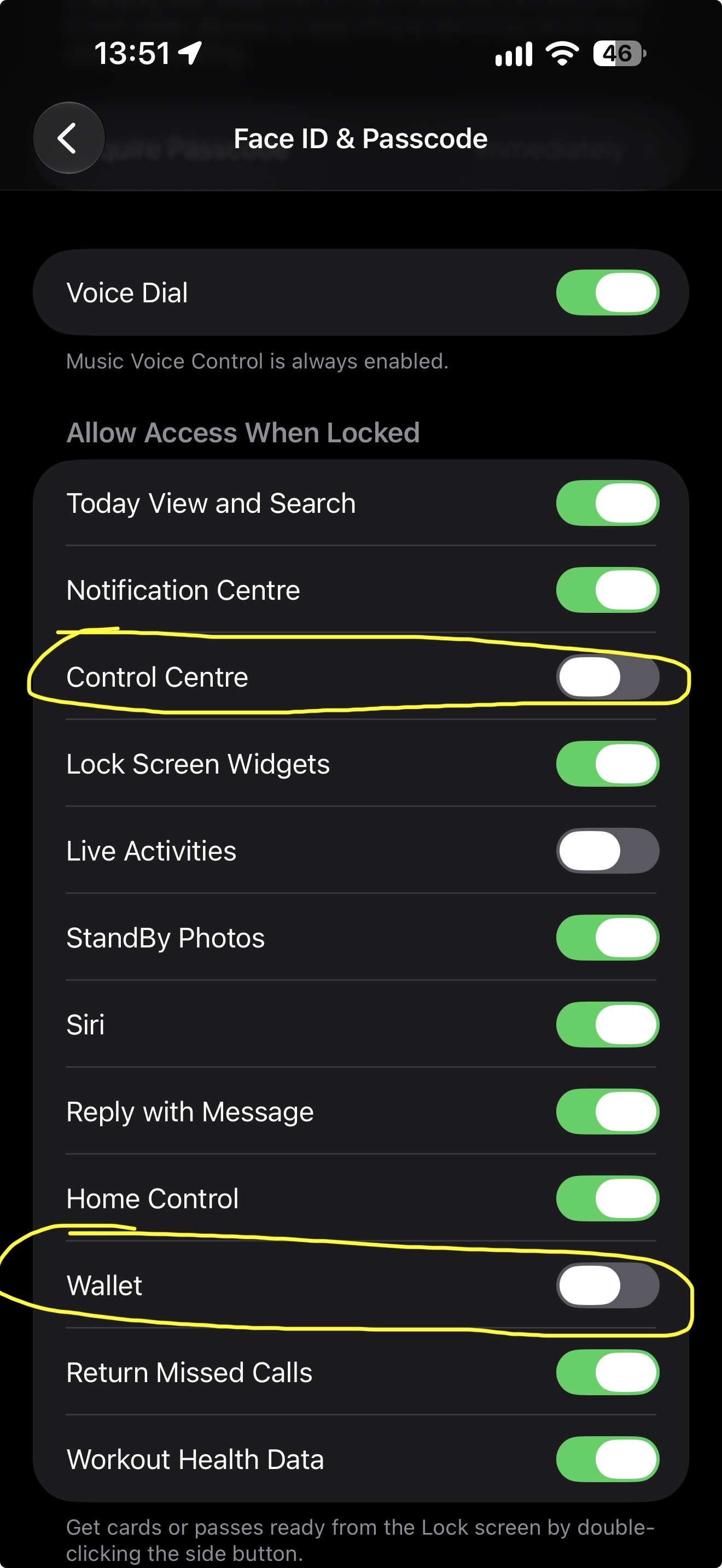
By default, anyone holding your locked iPhone can open Control Center and bring up Wallet. Control Center is the biggest concern, as a thief can use it to turn on Airplane Mode and take your iPhone offline, making it harder to track.
- Open Settings > Face ID & Passcode (or Touch ID & Passcode) and enter your passcode.
- Scroll down to Allow Access When Locked.
- Turn off Control Center and Wallet.
Use a Stronger Passcode
Use a 6-digit numeric code, a custom numeric code or a custom alphanumeric code. Avoid the standard 4-digit numeric code, which has only 10,000 possible combinations compared to 1,000,000 for 6 digits. A longer custom code is stronger again, especially if it includes letters.
- Open Settings > Face ID & Passcode (or Touch ID & Passcode) and enter your passcode.
- Tap Change Passcode and enter your current passcode.
- Tap Passcode Options and choose Custom Alphanumeric Code, Custom Numeric Code or 6-Digit Numeric Code.
- Enter and confirm your new passcode.
Turn On Stolen Device Protection
If your iPhone is stolen, Stolen Device Protection adds a security delay that is designed to stop a thief from performing critical operations. This gives you time to mark your device as lost and make sure your Apple Account is secure. It must be turned on before your iPhone is lost or stolen, and it needs two-factor authentication, a passcode, Face ID or Touch ID, Significant Locations and Find My to be set up.
- Open Settings > Face ID & Passcode (or Touch ID & Passcode) and enter your passcode.
- Tap Stolen Device Protection, then turn it on.
Remember to turn this off before handing your iPhone in for service or trading it in. If you leave it until you get there, you may have to wait an hour for the security delay to finish.
Turn it off while you are at home or another familiar location, as the delay can apply when you are away from one.
Privacy
Encrypt Your Backup
Apple encrypts your iCloud Backup by default, but it holds the keys. Turning on Advanced Data Protection adds end-to-end encryption to your iCloud Backup and most of your other iCloud data, including Photos and Notes, so only your trusted devices can decrypt it. iCloud Mail, Contacts and Calendars are not covered. Apple can no longer offer it to new users in the United Kingdom.
- Open Settings > [your name] > iCloud.
- Scroll down and tap Advanced Data Protection.
- Tap Turn On Advanced Data Protection.
- If asked, set up a Recovery Contact or Recovery Key, and update any older devices signed in to your Apple Account.
- Follow the on-screen steps to finish.
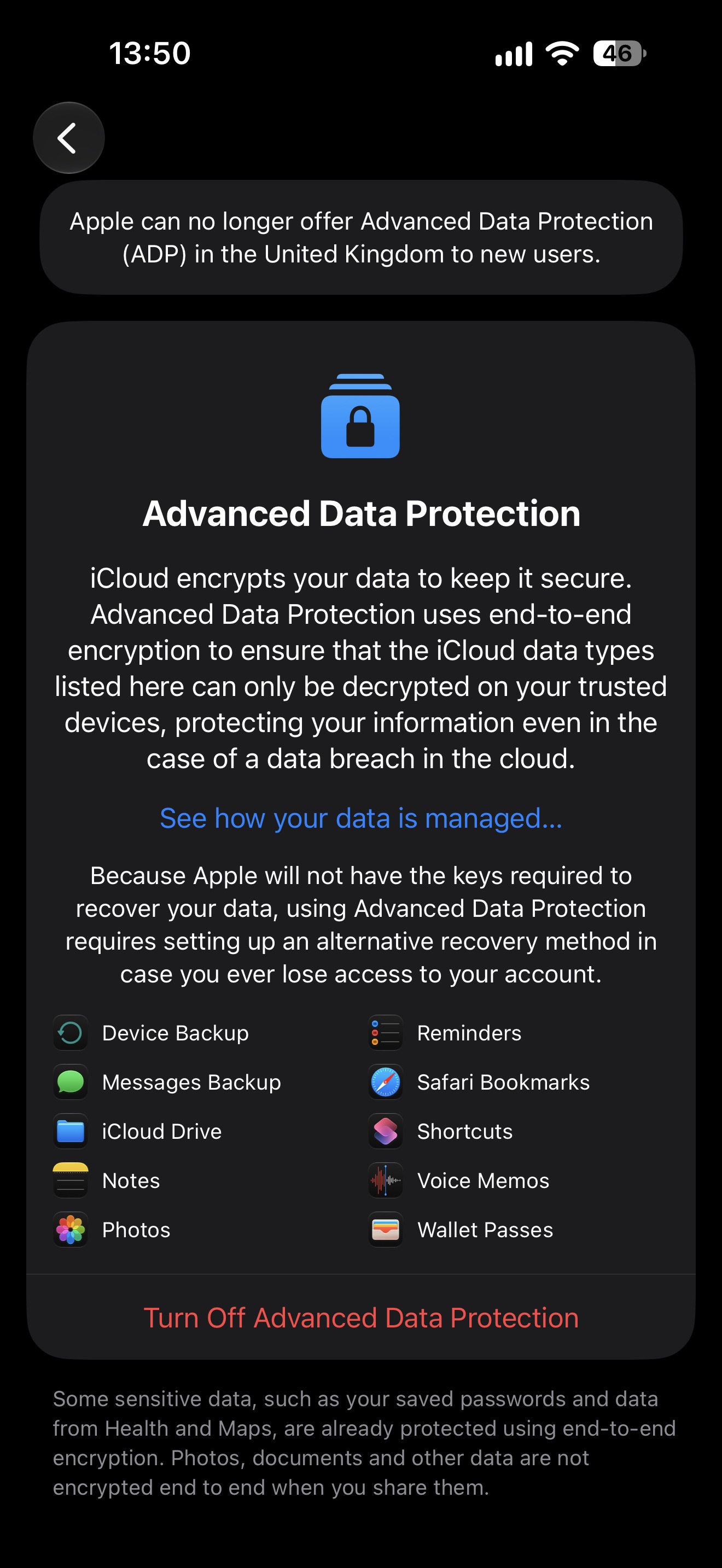
Keep your Recovery Key somewhere safe and make sure your Recovery Contact is someone you trust. Apple cannot recover your end-to-end encrypted data if you lose access to your account.
Turn Off Personalised Ads
This stops Apple from using information about you to target the ads it shows in places such as the App Store and Apple News. You will still see the same number of ads, but they may be less relevant to you.
- Open Settings > Privacy & Security > Apple Advertising.
- Turn off Personalised Ads (called Personalized Ads in some regions).
Tweaks
Speed Up Haptic Touch
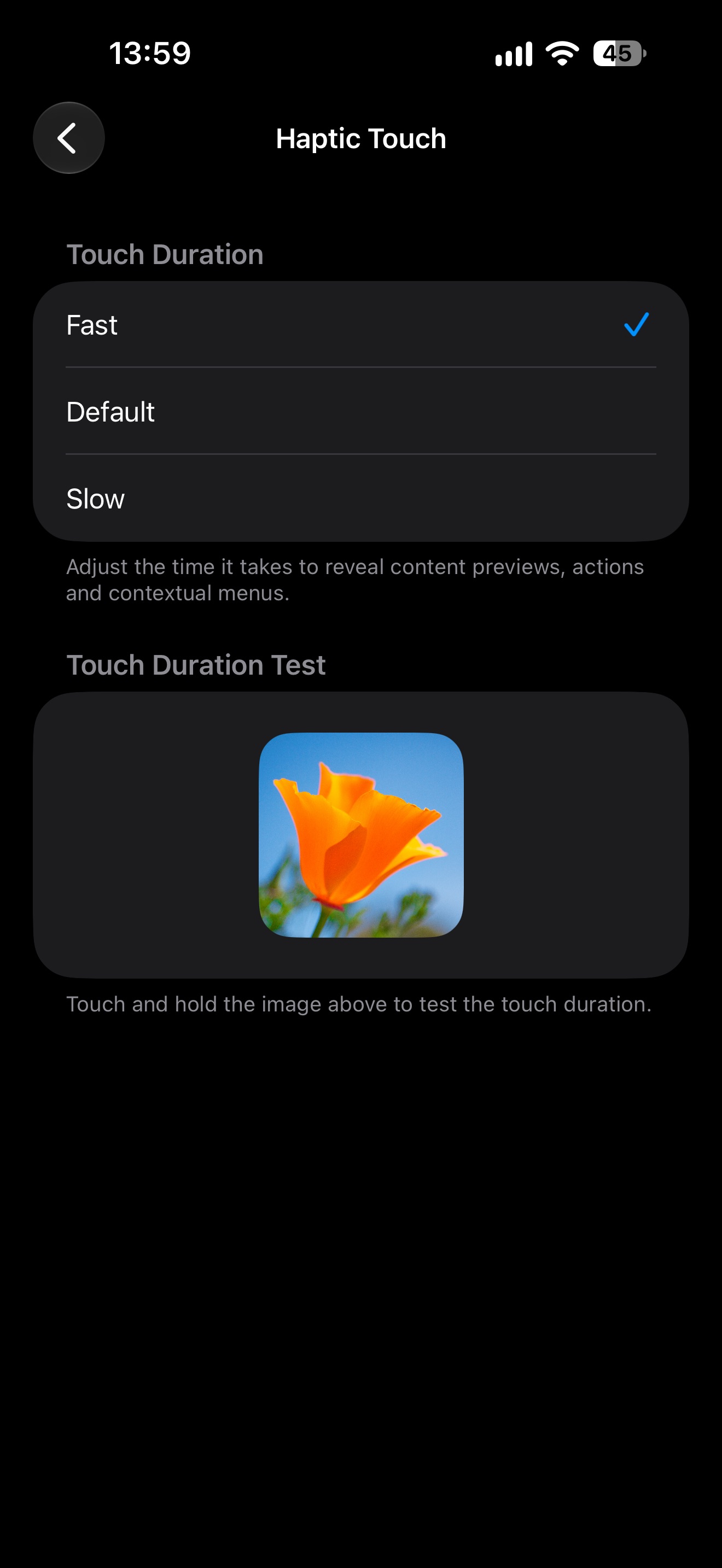
Haptic Touch is the touch and hold gesture that brings up content previews, actions and contextual menus. Setting it to Fast shortens how long you need to hold before they appear.
- Open Settings > Accessibility > Touch > Haptic Touch.
- Under Touch Duration, choose Fast.
- Touch and hold the image under Touch Duration Test to try the new speed.
Three-Finger Swipe to Undo and Redo
When editing text, swipe left with three fingers to undo and swipe right with three fingers to redo.
Use the Space Bar as a Trackpad
You do not need to tap on the text itself to move the cursor, as the keyboard can act as a trackpad.
- Touch and hold the space bar until the keys go blank.
- Without lifting your finger, drag around the keyboard to move the cursor anywhere in the text box.
- To select text, keep holding and tap the keyboard with a second finger, then drag your first finger.
Customise the Action Button
If your iPhone has an Action Button, you can choose what it does. I like to set mine to the torch.
- Open Settings > Action Button.
- Swipe through the actions until you reach Torch (called Flashlight in some regions).
- Press and hold the Action Button to turn the torch on or off.
One-Handed Mode with Reachability
Reachability lowers the top of the screen so you can reach it with one hand.
- Open Settings > Accessibility > Touch and turn on Reachability.
- Drag the home bar at the bottom of the screen down to lower the screen.
- Tap the empty area at the top of the screen to return to normal.
Disable In-App Ratings & Reviews
This stops apps from interrupting you with pop-ups asking for a rating or review.
- Open Settings > Apps > App Store (or Settings > App Store on older iOS versions).
- Turn off In-App Ratings & Reviews.
Enable Reduce Loud Audio
This helps protect your hearing by automatically lowering headphone audio that goes above a decibel level you choose.
- Open Settings > Sounds & Haptics > Headphone Safety.
- Turn on Reduce Loud Audio.
- Drag the slider to set the maximum decibel level.
Change Your Lock Screen Buttons
The two buttons at the bottom of the Lock Screen can be swapped for other controls. I like to set mine to the Silent Mode toggle and Timer.
- Unlock your iPhone without leaving the Lock Screen, then touch and hold the Lock Screen.
- Tap Customise (called Customize in some regions), then choose Lock Screen.
- Tap the - on a button to remove it, then tap the + that replaces it.
- Choose Silent Mode for one button and Timer for the other, then tap Done.
Customise Control Centre
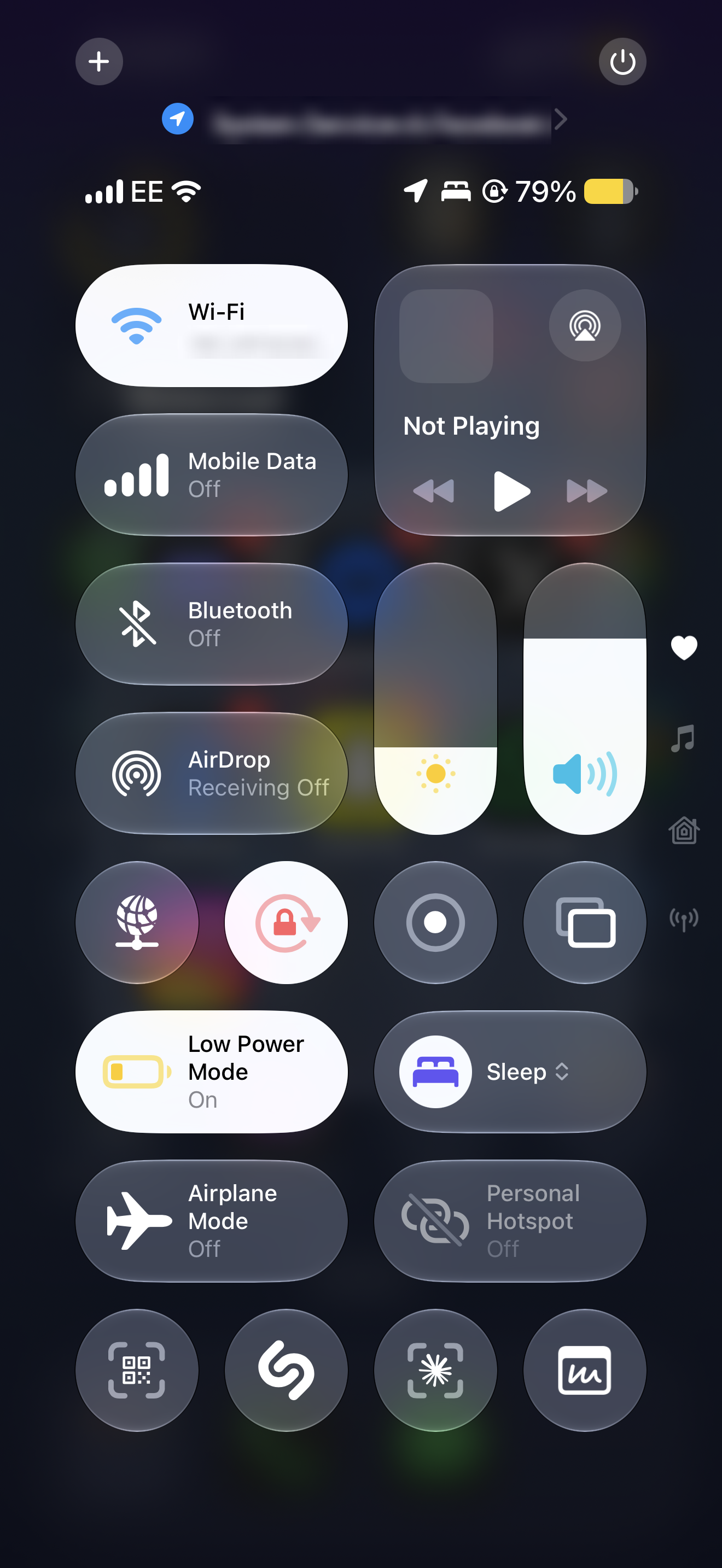
You can add, remove, resize and rearrange the controls in Control Centre so the ones you use most are easy to reach. This is the layout I use.
- Swipe down from the top-right corner of the screen to open Control Centre.
- Tap + in the top-left corner (or touch and hold an empty area).
- Tap Add a Control to add a new one, or tap the - on a control to remove it.
- Drag the handle in the corner of a control to resize it, or drag a control to move it.
- Tap an empty area to save your changes.
Turn Off Keyboard Sounds
This stops the clicking sound every time you tap a key.
- Open Settings > Sounds & Haptics > Keyboard Feedback.
- Turn off Sound.
Turn On Adaptive Power Mode
Adaptive Power helps your battery last longer on days you use your iPhone more than usual, by making small adjustments such as slightly lowering the display brightness. It needs iOS 26 or later and an iPhone that supports Apple Intelligence.
- Open Settings > Battery > Power Mode.
- Turn on Adaptive Power.
Shortcuts App
Turn Off Silent Mode with a Message
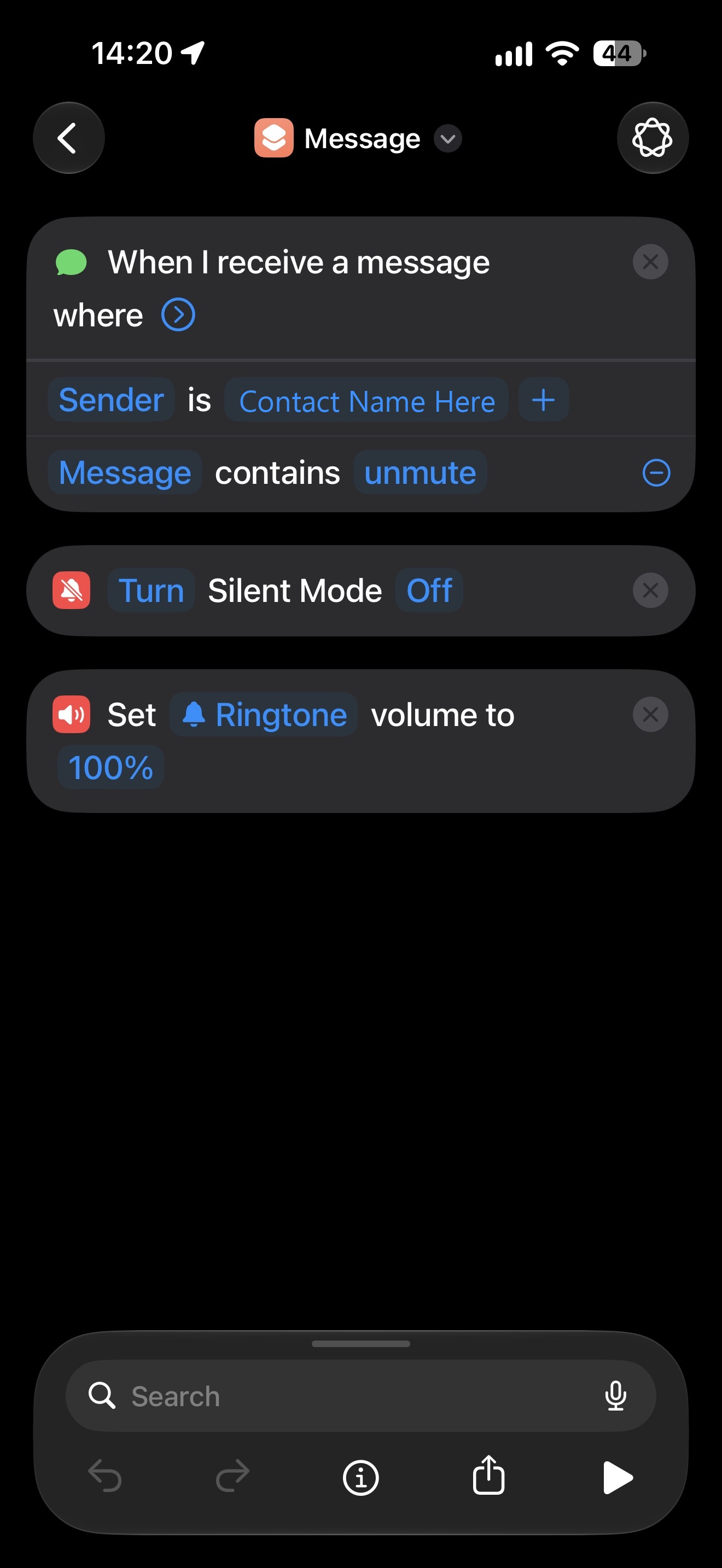
This automation takes your iPhone off silent and sets the ringtone volume to 100% when a specific contact sends you a message containing a specific phrase. It is useful if you lose your iPhone while it is on silent, as someone you trust can text the phrase and then call it so you can hear it ring. It only works on iPhones with an Action Button.
- Open the Shortcuts app and go to the Automation tab.
- Tap + and choose Message.
- Set Sender to the contact you want to use, and set Message Contains to your phrase.
- Choose Run Immediately, then tap Next.
- Tap New Blank Automation and add the Set Silent Mode action.
- Set the action to turn Silent Mode Off.
- Add the Set Volume action, set it to Ringtone and 100%, then tap Done.
Related Articles
All guides
Gaming
01 November 2026
My Recommended RuneLite Plugins
Linux
08 March 2026
Managing Partitions
Linux
04 February 2026
Useful Keyboard Shortcuts
Linux
02 February 2026
Senka's CachyOS Plasma KDE Setup
Linux
02 February 2026