Linux
08 March 2026
Arch Package Installation Basics
23 January 2026

Author
Senka WolfTable of Contents
Arch Package Installation GUI Basics
You don't have to install packages via a terminal/console. Depending on the desktop environment or distribution you are using you may have a pre-installed app manager. CachyOS comes bundled with Octopi, you can search for it in the start menu and it will look like the below.
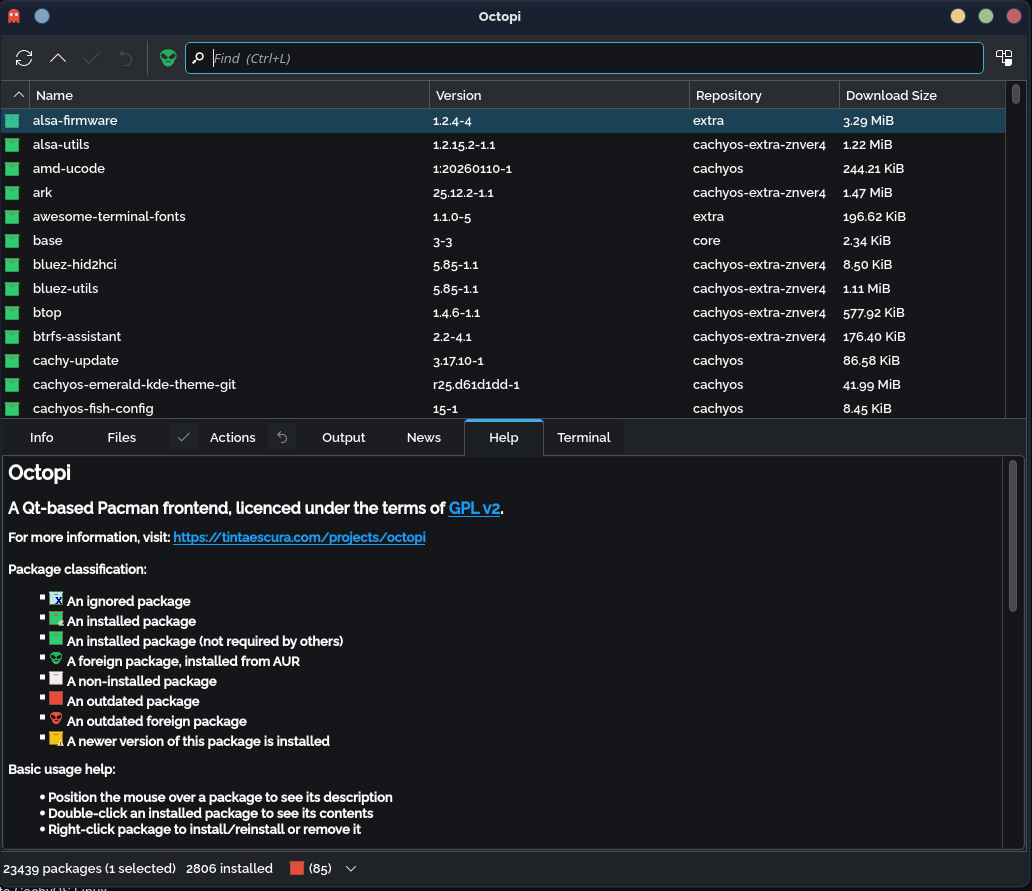
Here you can search for packages to install, update or even remove all without needing to use or remember any commands.
Octopi is a very simply designed app manager however if you would like something which is more graphical then you can use Discover instead. Discover does not come pre-installed on CachyOS but is often installed on other distributions which use the KDE desktop environment. To get Discover simply install it via Octopi or sudo pacman -Sy discover flatpak in the terminal. Then you can search for it in the start menu.
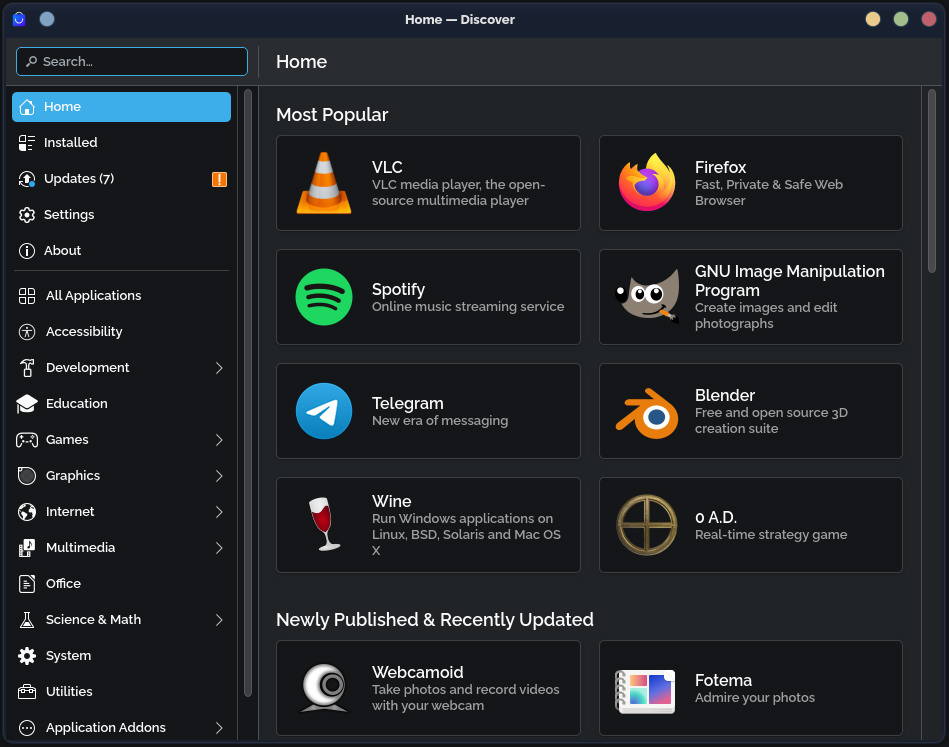
Note: GUI package managers are a bit of a niche on Arch based distros as Arch doesn’t ship an app store/app manager by default. Most GUIs are front-ends to pacman and/or AUR helpers rather than native, fully integrated stores like on Ubuntu or Fedora distros.
Arch Package Installation Terminal/Console Basics
This document explains the package installation commands used in my setup guides or personal setups.
I prefer to use pacman where possible to install packages however there are other options which I will outline further down the document.
Package Installation Basics
Below is a breakdown of how the command works for installing packages:
sudo pacman -Sy <packages>sudo- run the command with administrator privilegespacman- Arch Linux’s package manager-S- install packages-y- synchronize (refresh) the package database<packages>- one or more package names to install
Any word appearing after
-Syis a package name. These can be replaced with any software you want to install.Multiple packages can be installed in a single command by listing them separated by spaces.
My Common packages
| Package | Description | Package Manager |
|---|---|---|
flatpak | Universal, sandboxed application framework. | pacman |
yay | AUR helper for installing packages from the Arch User Repository. | pacman |
snapper | Managing file system snapshots in Linux, primarily designed to work with the Btrfs file system. | pacman |
snap-pac | Hooks and scripts that automatically create pre and post snapshots using Snapper before and after package transactions with Pacman. | pacman |
grub-btrfs | Tool that enhances the GRUB bootloader by allowing you to boot into Btrfs snapshots. | pacman |
os-prober | Tool for adding other distros to GRUB. | pacman |
irqbalance | A daemon that helps distribute hardware interrupts across multiple processors in a system to improve performance. | pacman |
cachy-update | Update notifier & applier for CachyOS. | pacman |
zen-browser | Minimalist web browser. | pacman |
stow | Symlink farm manager. | pacman |
qbittorrent | Lightweight BitTorrent client. | pacman |
ghostty | GPU-accelerated terminal emulator. | pacman |
starship | Customizable prompt for any shell. | pacman |
htop | CPU process viewer. | pacman |
btop | CPU process viewer. | pacman |
cpu-x | Gathers information on main computer components. | pacman |
gparted | Partition manager. | pacman |
openrgb | RGB lighting control. | pacman |
k3b | Disc burning. | pacman |
cmatrix | Creates a Matrix-style display with scrolling characters. | pacman |
strace | Diagnostic, debugging and instructional userspace utility. | pacman |
discord | Voice, video, and text communication platform. | pacman |
obs-studio | Screen recording and live streaming software. | pacman |
gpu-screen-recorder-ui | A fullscreen overlay UI for GPU Screen Recorder in the style of ShadowPlay. | pacman |
krita | Digital painting and illustration application. | pacman |
libreoffice-fresh | Office suite. | pacman |
mythes-en | English thesaurus files (used by office applications). | pacman |
ttc-iosevka | A font designed for writing code, used in terminals. | pacman |
vlc | Media player. | pacman |
ffmpeg | Suite of libraries and programs for handling video, audio, and other multimedia files and streams. VLC can use this to play more file types. | pacman |
cachyos-gaming-meta | This meta-package includes all necessary gaming libraries and dependencies. | pacman |
cachyos-gaming-applications | This package contains tools and launchers like Steam, Lutris, and others. | pacman |
piper | GTK+ application to configure gaming mice. | pacman |
retroarch | Open-source frontend for emulators. | pacman |
code | Visual Studio Code editor. | pacman |
git | Distributed version control system. | pacman |
github-cli | GitHub command-line interface (gh). | pacman |
mysql-workbench | SQL IDE for MySQL. | pacman |
filezilla | FTP Client. | pacman |
winboat | Run Windows apps on Linux. | pacman |
kvantum | SVG-based theme engine for Qt4/Qt5 and KDE. | pacman |
ttf-raleway | Elegant sans-serif typeface font. | yay |
ungoogled-chromium-bin | Ungoogled Chromium Browser. | yay |
qdirstat-bin | Powerful disk usage analyzer. | yay |
qdiskinfo-bin | Frontend for smartctl. | yay |
nordvpn-bin | VPN service. | yay |
nordvpn-gui-bin | Nord UI. | yay |
rustdesk-bin | Remote access. | yay |
wtf | Acronym dictionary within the terminal. | yay |
wtfutil | Personal information dashboard. | yay |
vicinae-bin | Focused launcher for your desktop. | yay |
peaclock | Responsive and customizable clock, timer, and stopwatch for the terminal. | yay |
solaar | Linux device manager for Logitech devices. | yay |
rclone-browser | A simple cross platform GUI for Rclone. | yay |
vesktop | Custom Discord client with Vencord preinstalled. | yay |
fluxer-git | Fluxer is a free and open source Swedish-based Instant Messaging app. | yay |
millennium | Open-source project designed to enhance the Steam client experience. | yay |
bolt-launcher | Third-party Jagex Launcher. | yay |
github-desktop-bin | Tool that simplifies your development workflow with Git. | yay |
Package Management Choices
While Arch Linux provides multiple ways to install software, my setups primarily use pacman, the native Arch package manager. Other options like AUR helpers (yay) and Flatpak exist, but pacman is preferred for core tools and system software.
Why pacman?
- Native and officially supported – packages come directly from Arch maintainers.
- Predictable and consistent – integrates cleanly with the system and updates reliably.
- Simpler system state – avoids duplicate libraries or parallel runtimes.
- Easier troubleshooting – most Arch documentation assumes pacman-managed software.
Alternatives
- AUR helpers (
yay) - I use only for packages unavailable in the official repos. It does offer access to a larger set of software, but packages are user-maintained and require building from source. - Flatpak – It provides sandboxed applications with bundled dependencies. Useful for desktop apps that need isolation, but less native integration and higher disk usage.
Quick Comparison: Pacman vs AUR vs Flatpak
| Feature | Pacman | AUR (via yay) |
Flatpak |
|---|---|---|---|
| Source | Official Arch repos | Arch User Repository (community) | Flatpak remote repositories |
| Trust level | High (maintainer-reviewed) | Medium (user-maintained) | High (sandboxed) |
| System integration | Full | Full | Partial (sandboxed) |
| Updates | pacman -Syu | yay -Syu | flatpak update |
| Disk usage | Minimal | Minimal | Larger (bundled runtimes) |
| Use case in this setup | Core tools & system software | Packages not in official repos | Optional desktop apps with sandboxing |
| Ease of troubleshooting | Easy | Moderate | Moderate |
Related Articles
All guides
Linux
04 February 2026
Useful Keyboard Shortcuts
Linux
02 February 2026
Senka's CachyOS Plasma KDE Setup
Linux
02 February 2026
Useful Terminal Commands
Linux
25 January 2026
Managing Dotfiles
Linux
21 January 2026