Linux
08 March 2026
Managing Dotfiles
25 January 2026

Author
Senka WolfTable of Contents
CachyOS Plasma KDE dotfiles (backup with GNU stow)
Step 1 Setup Prep
Install GNU Stow:
$ sudo pacman -Sy stowMake a directory within the home directory.
$ mkdir dotfilesmkdir- Make folder/directorydotfiles- folder/directory name
Note: The
~ symbolises the home directory and this is where all the configs are found and also the place we should store our backup directory as well. This is because GNU Stow will symlink files using the same file paths and files found within the directory we just made to the home directory.Step 2 Files
If you are setting it up for the first time you need to move your current files to the folder we just made to make the backup or clone a repo into the directory if you are restoring a backup.
Move onto either Step 2.1 - Moving Current Files or Step 2.2 - Restoring Backup depending on your situation.
Step 2.1 Moving Current Files
If you want to make a backup of the current files you will need to move them from the current directory and into the dotfiles folder.
Navigate into the directory:
$ cd dotfiles #Navigate into the directory
$ mv ~/.zshrc ./ #Move the files you want to backup
Below explains a breakdown of the command, the files being moved can be changed to suit the files you wish to backup.
mv- move~/.zshrc- .zshrc file found in the home directory. Change this path to any dotfiles you wish to include in the backup../- Put the files in the current directory you are in.
If you want some examples of dotfiles to backup look at the Files To Backup section. Here is an example of how your folder should look after you have moved your files, remember this will vary depending on your installed applications.
└── dotfiles/
    ├── .zshrc
    └── .config/
        ├── plasma-org.kde.plasma.desktop-appletsrc
        ├── kwinrc
        ├── kdeglobals
        ├── btop/
        │   └── btop.conf
        ├── fastfetch/
        │   └── config.jsonc
        └── starship.toml
Before you can push your files you need somewhere to push them to. On GitHub create a new empty private repository (don't add a README or any other files) and make sure you have an SSH key added to your GitHub account. If you don't have an SSH key yet follow the SSH key steps in Step 2.2 - Restoring Backup first then come back here.
Once you have moved all the files, we then need to initialise a new repository by
$ git init
$ git add --all #Stage all the files
$ git commit -m "Message Here" #Commit the files
$ git branch -M main #Name the branch main
$ git remote add origin git@github.com:<username>/<repo name>.git #Link the folder to your GitHub repository
$ git push -u origin main #Finally to push it to the repository
The -u on the first push links your branch to the GitHub repository, so from now on a plain git push or git pull is all you need.
Caution: Be careful as some dotfiles may contain sensitive data which could be a security risk and should not be shared. To be safe ensure the GitHub repository is private unless you know what you are doing!
Step 2.2 Restoring Backup
Now we need to make an SSH key to allow us to access the already existing repo.
$ ssh-keygen -C GNU-Stow-Repossh-keygen- Generates a new public/private key pair.-C- This allows us to add a comment.GNU-Stow-Repo- Comment, you can put anything you want just make it descriptive.
Next it will ask where do you want to save the key. I like to leave it as default so just press Enter.
If you already have a key saved in that location you will get a prompt asking to overwrite it. Type n and either run the command again and give the new key a different file name, or skip this and use your existing key. Overwriting a key will break anything else that uses it, such as other servers or GitHub accounts.
You will now be asked for a passphrase, type what you like or if you wish to not have one leave it blank and press Enter. This will then output something like:
$ Your identification has been saved in /home/senkawolf/.ssh/id_ed25519
$ Your public key has been saved in /home/senkawolf/.ssh/id_ed25519.pub
$ The key fingerprint is:
$ SHA256:MmGMLEPB+om6hVMoFEz1DxxcfYkSS3TcUHSAlihgdr4 GNU-Stow-Repo
Copy the public key directory path and run the below:
$ cat /home/senkawolf/.ssh/id_ed25519.pubThis will then print your SSH key in the terminal, copy everything. Or you can use your file manager and manually navigate to the file, just remember the .ssh folder is hidden and you will need to turn on hidden files.
Then go to your GitHub settings, then go to the Access section and you will see SSH and GPG keys.
Click New SSH key, type whatever title you want just make sure it is descriptive and then paste in the key you copied from the terminal. You will be asked to enter your password or 2FA to finalise adding the SSH key.
Now you can clone your repository, make sure you are in the home ~ directory. Then go to your repo on GitHub, click on the code button and get the SSH reference. Yours will differ to the below but will be something like git clone git@github.com:<username>/<repo name>.git
$ cd ~
$ git clone git@github.com:SenkaWolf/dotfiles.git
If you added a passphrase when making the SSH key it will be asked during this setup.
Step 3 GNU Stow
Now we have the directory made with the files we want to symlink.
$ cd dotfiles #Make sure you are in the dotfiles directory.
$ stow . #Run this to create the symlink.
Step 4 Using the setup
Now whenever you make a change and want to back it up you can repeat the below steps as used in Step 2.1 - Moving Current Files.
Pushing Files
To push the files to GitHub you must do the following:
$ git add --all #Stage all the files
$ git commit -m "Message Here" #Commit the files
$ git push #Finally to push it to the repository
Pulling Files
$ git status #Check the status of the repo.
$ git pull #Pull changes
Adding New Files
Stow doesn't constantly look for new links so if you add a new file to the repository folder manually or via git you will need to rerun:
$ cd dotfiles
$ stow .
Note: If a file already exists in the location the symlink is being made you will get an error. If this happens you can simply navigate to the directory and delete the file. Then repeat the same steps above again and it will work.
Notes
Files To Backup
There are many files you can back up, but here are a few important ones. These can include system files as well as application files, and the exact files you choose will depend on the applications you use.
| File / Directory | Type | Notes / Description |
|---|---|---|
~/.zshrc | Linux | Zsh shell |
~/.config/kdeglobals | plasmashell | General KDE Plasma settings (theme, colors, fonts) |
~/.config/kwinrc | Application | KWin window manager configuration (window rules, effects) |
~/.config/plasma-org.kde.plasma.desktop-appletsrc | plasmashell | Plasma desktop layout and widgets configuration |
~/.gitconfig | Application | Git global configuration |
~/.ssh/ | Application | SSH keys and settings |
~/.gnupg/ | Application | GPG keys and settings |
~/.config/<General Apps> | Application | Most modern Linux apps store configs here |
General Apps
Some examples of these are:
- btop (
~/.config/btop/btop.conf) - htop (
~/.config/htop/htoprc) - fastfetch (
~/.config/fastfetch/config.jsonc) - ghostty (
~/.config/ghostty/config)
Restarting Plasma
If you have cloned files from a repo which affect the plasma desktop you need to run the below command to stop and restart the process so the changes can take effect.
$ plasmashell --replace & #or use the below
$ systemctl --user restart plasma-plasmashell.service
Related Articles
All guides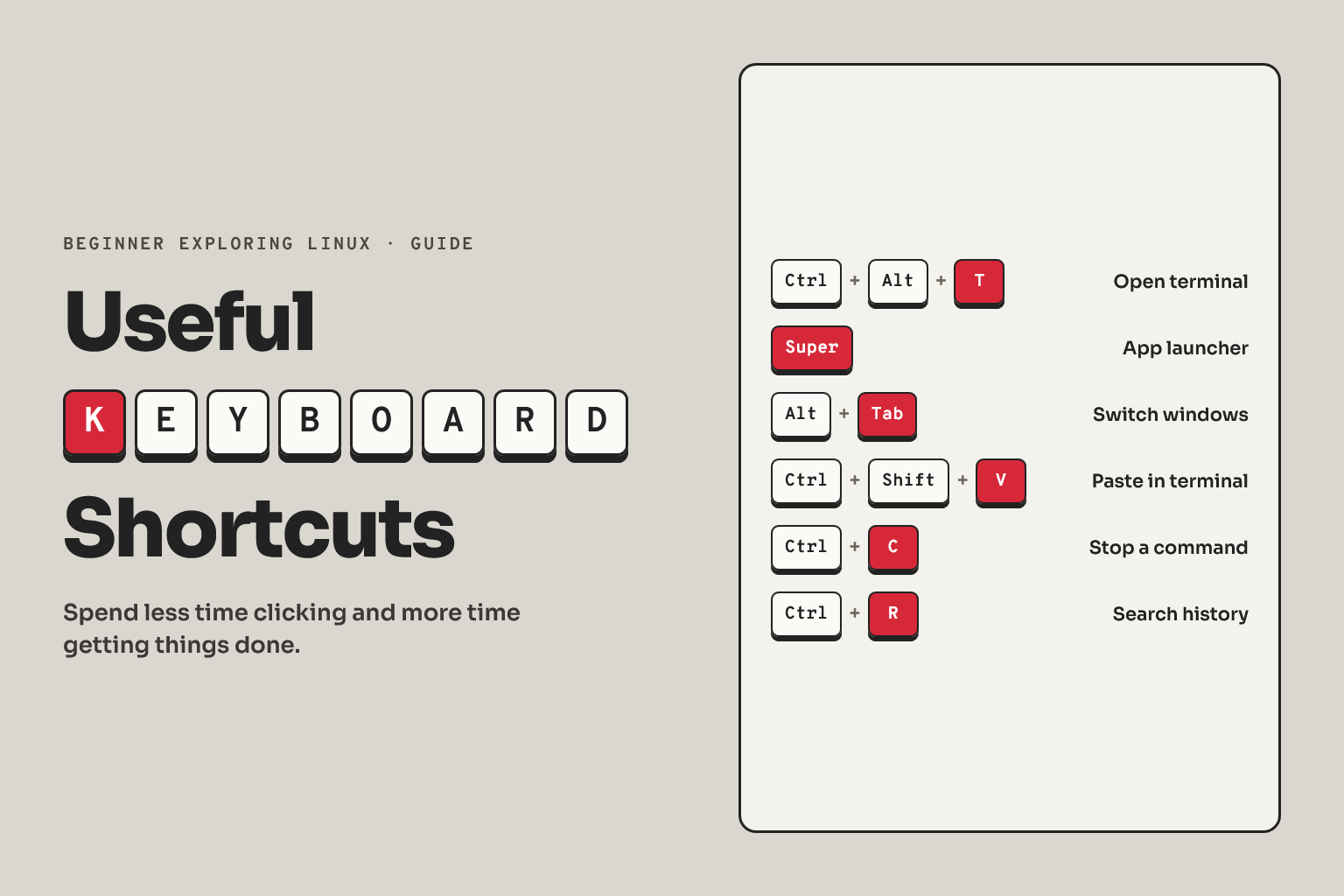
Linux
04 February 2026
Useful Keyboard Shortcuts
Linux
02 February 2026
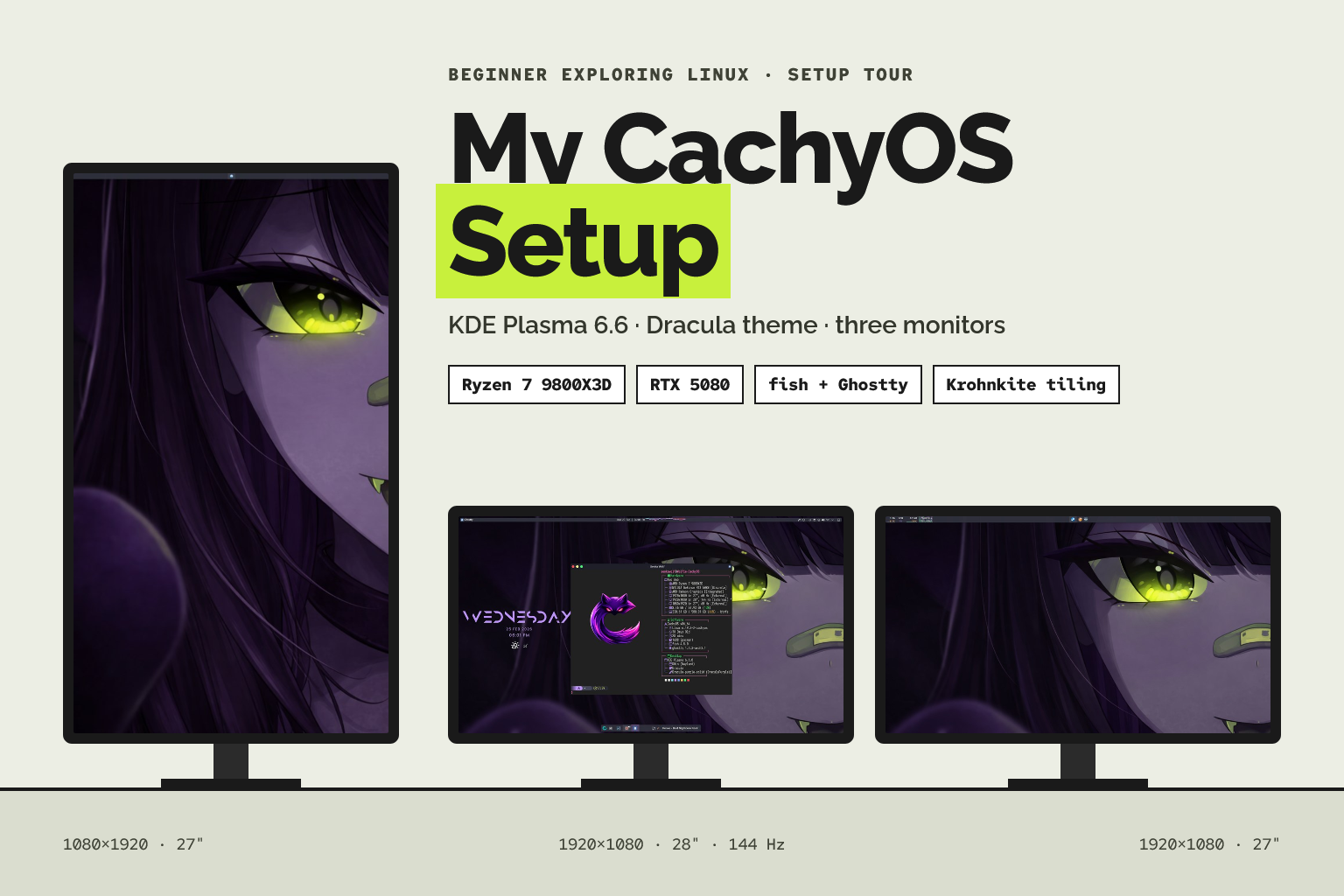
Senka's CachyOS Plasma KDE Setup
Linux
02 February 2026
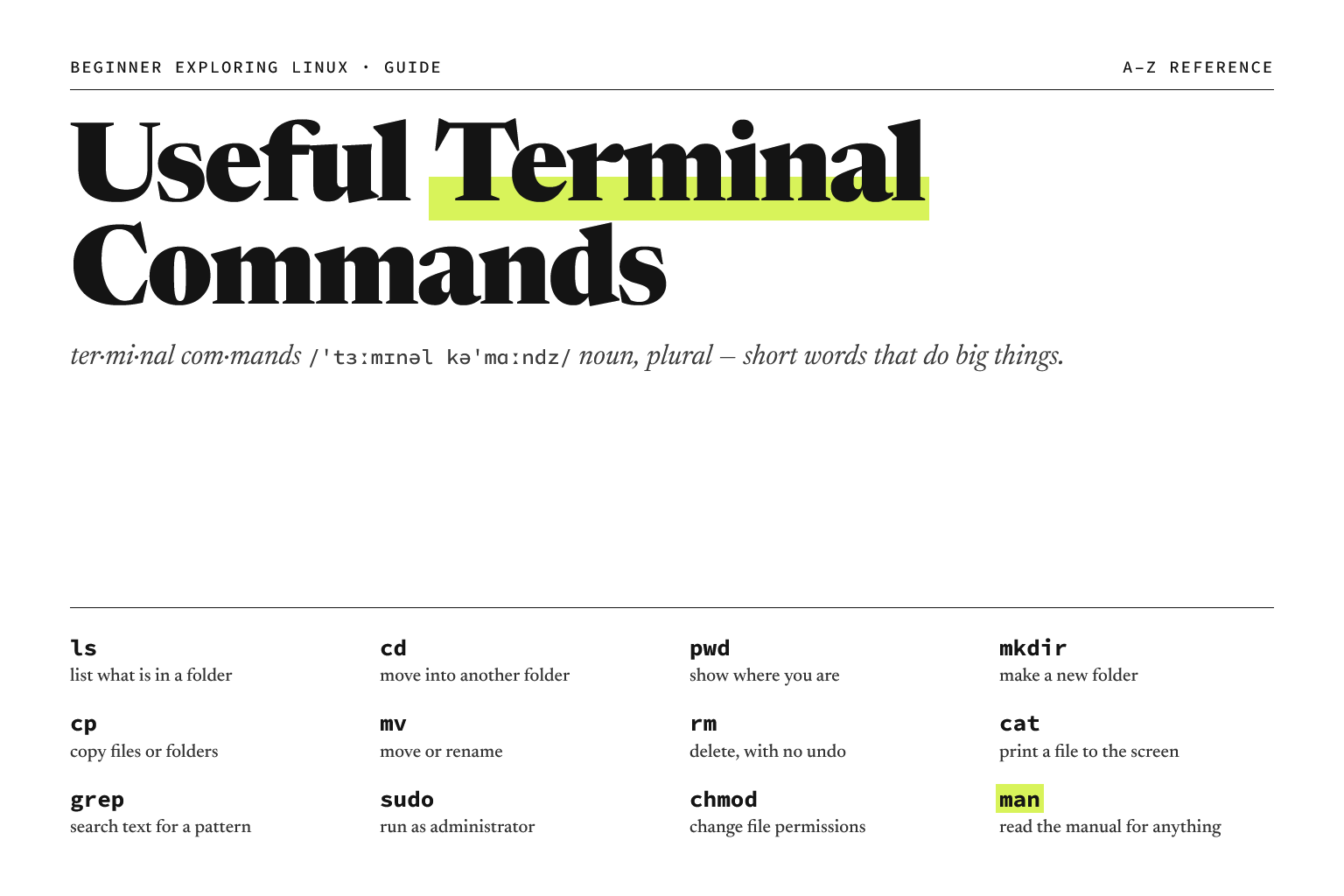
Useful Terminal Commands
Linux
23 January 2026
Arch Package Installation Basics

Linux
21 January 2026